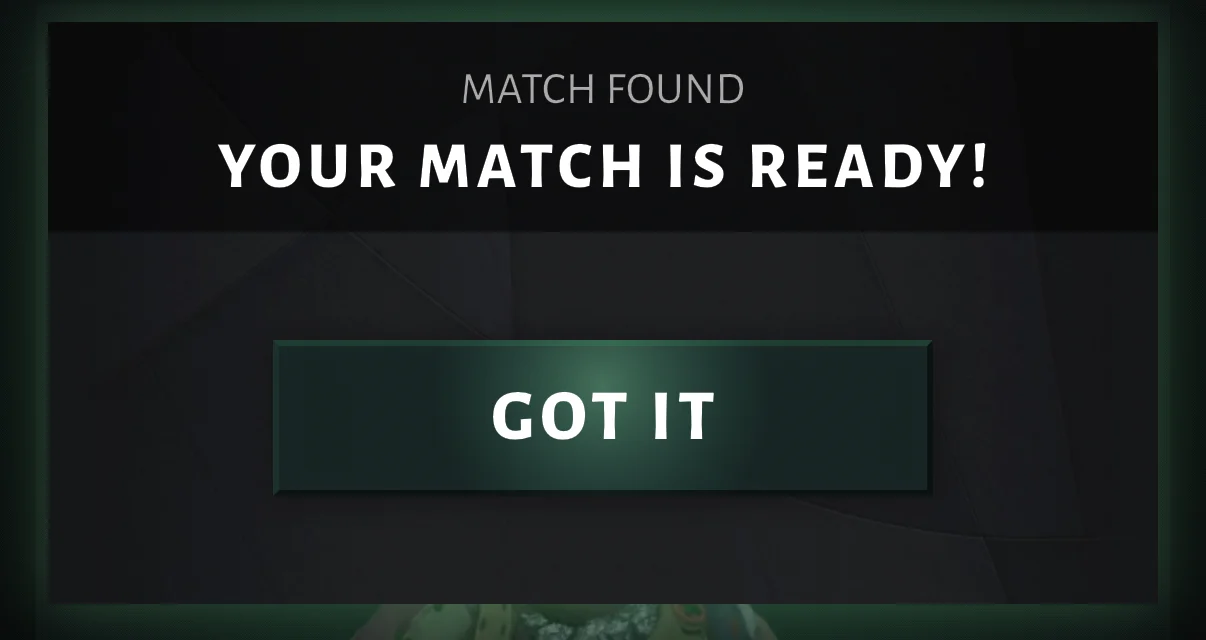
Windows gamers use Overwolf to see insights on their enemies during the draft (the pick phase). As a Mac user, I can’t install overlay software and benefit from it, and the same applies to Linux. Dota Addiction allows you to access all this info live as you play, without installing any third-party tools and without a Steam login. The “accept match” dialog will appear in your mobile app, similar to the one you accept in-game.
How it works
-
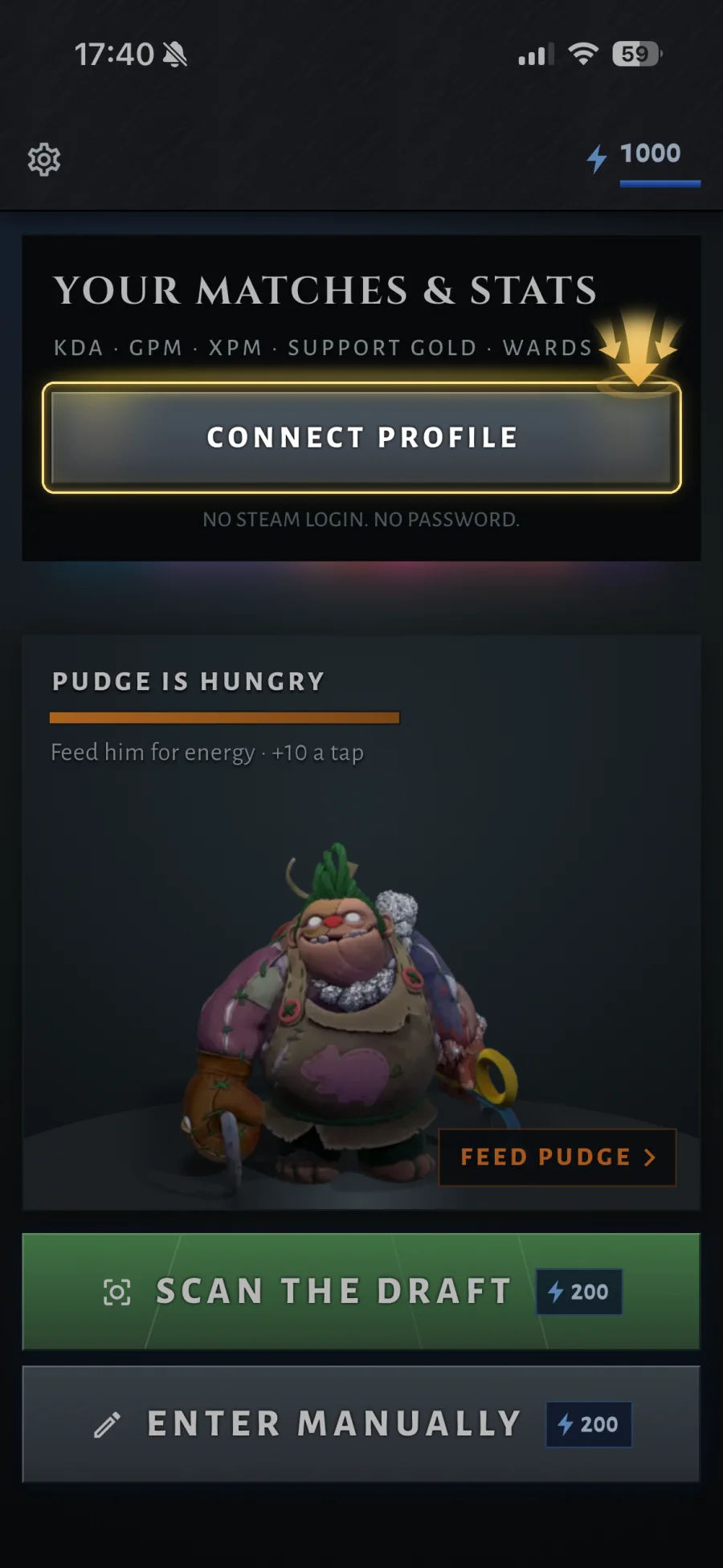
Connect your Dota profile. In Dota 2, click your avatar in the top-left: your Friend ID sits under your name.
-
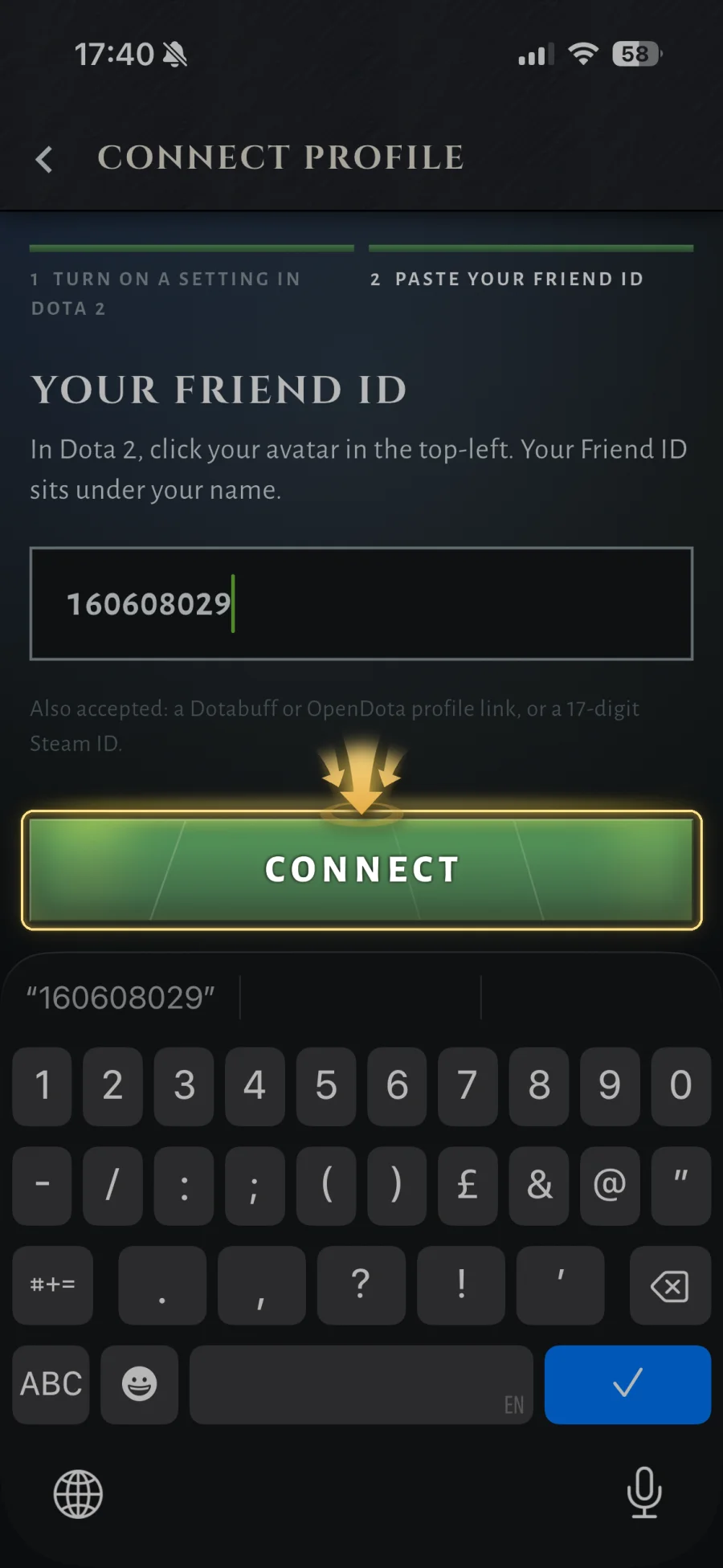
Enter your Friend ID. Type it into the app and tap Connect.
-
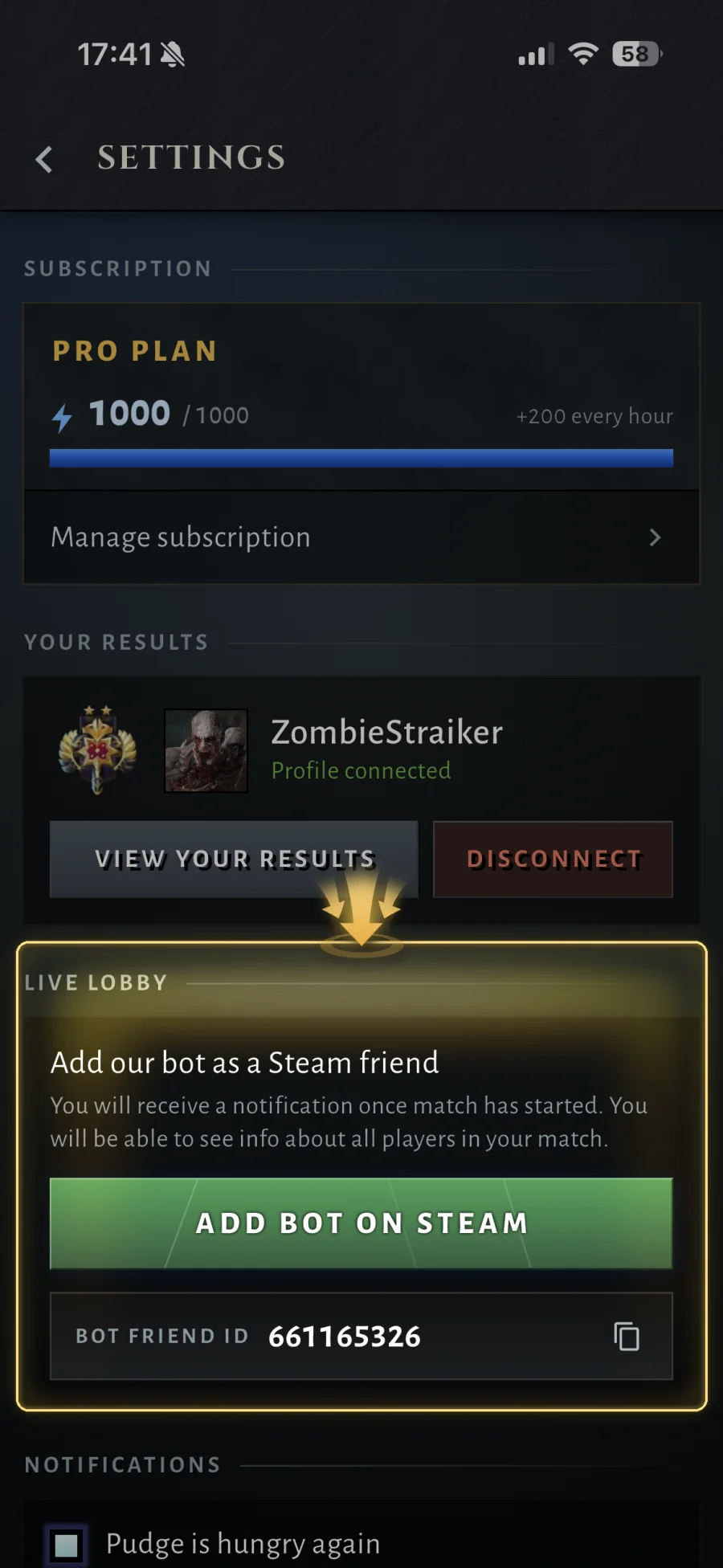
Add the bot on Steam. Open Settings. You will see your profile connected. Go to the “Live lobby” section and grab the bot’s Friend ID, or press “Add bot on Steam”. I have the Steam Mobile app installed, so it takes me straight to it.
-
Send the bot a friend request. Then come back to the app.
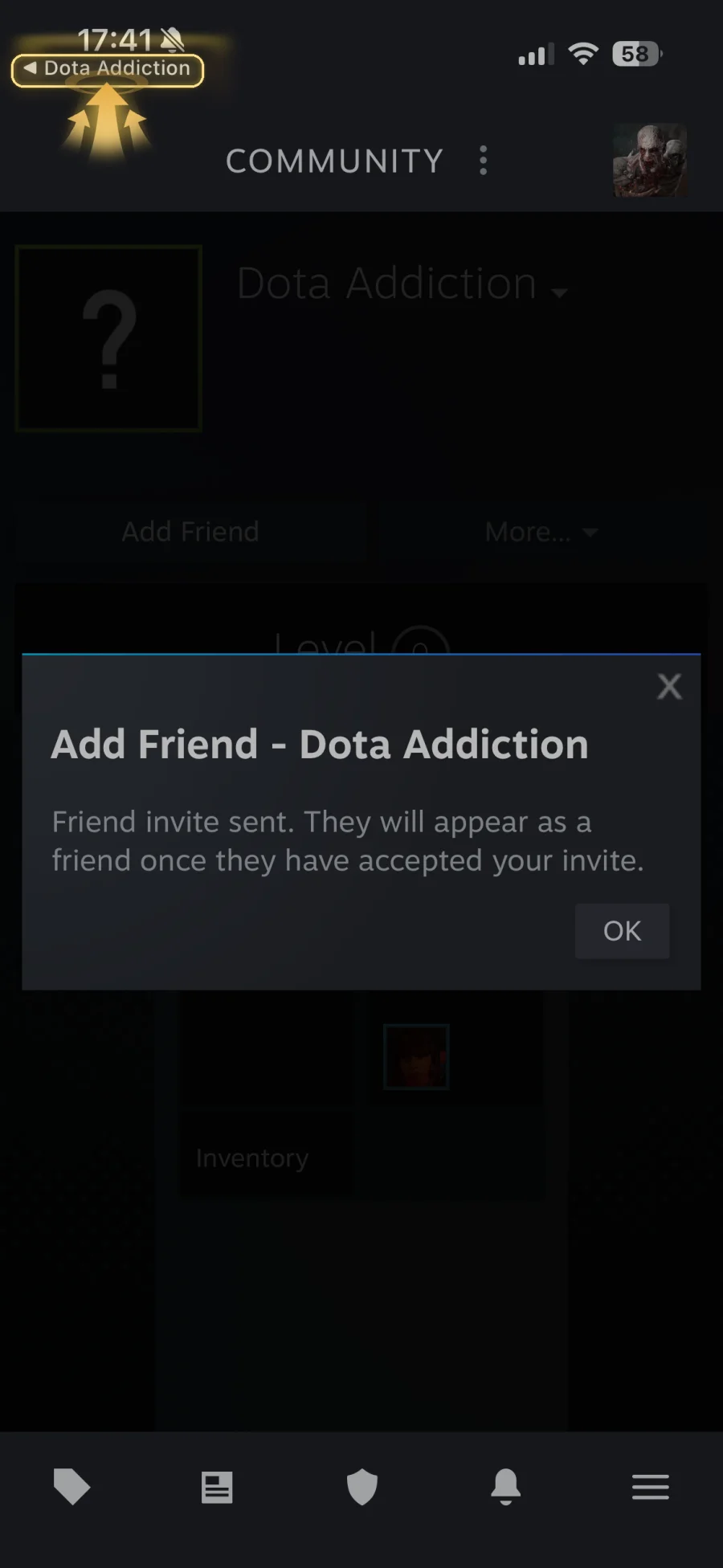
-
Go back to Settings. The bot should accept your friend request automatically.
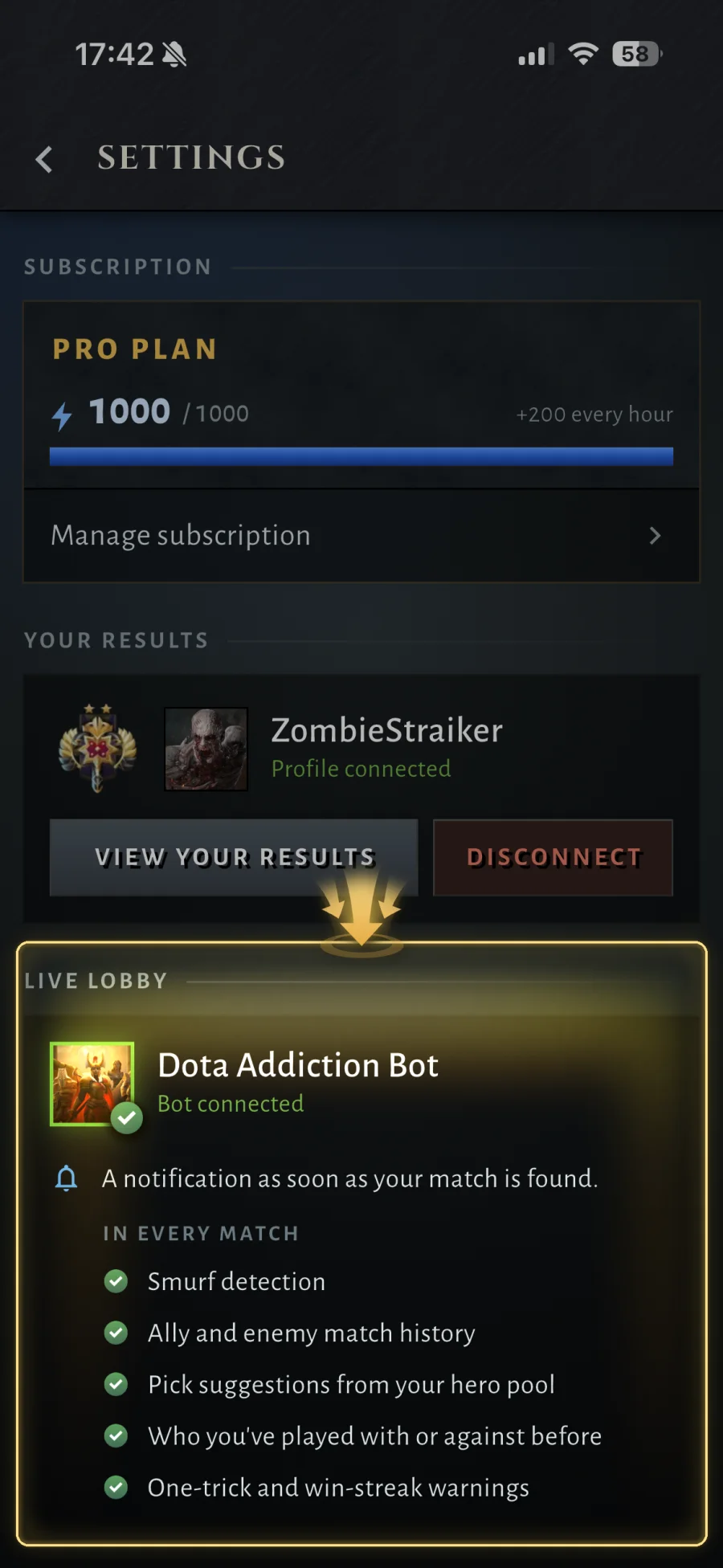
-
Queue as usual. When your match is found, open the app. The lobby is waiting on the Live match card and keeps updating while the app is open.
What you see
Every public player in the match: their medal, the heroes and positions they play most, their last ten games and any streak they are on. Dota’s average MMR for the match sits at the top. Players you have met before are marked, and so is your party.
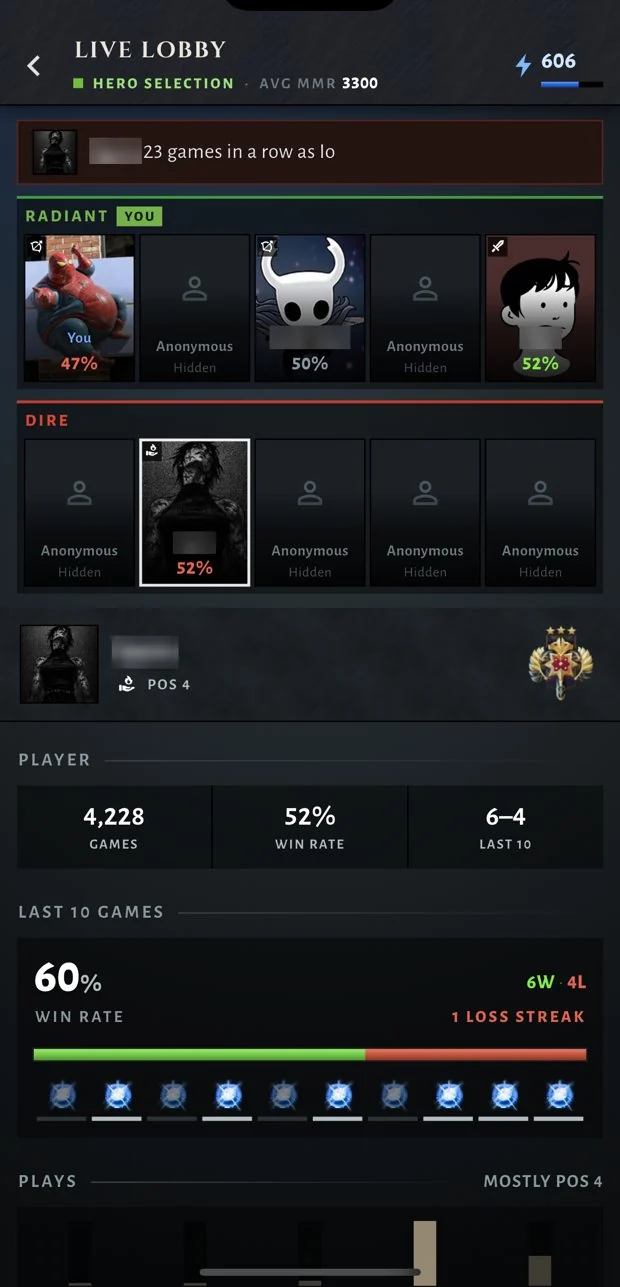
Two warnings show up when they apply. A one-trick flag means a player has picked the same hero game after game. A smurf flag needs three things at once: a run of wins, a high impact score and a small account. Treat both as hints, not verdicts.
Questions
Do I need Overwolf or an overlay?
No. Nothing runs on your PC and nothing attaches to the game. The bot follows your match through Steam.
What does the % under each player mean?
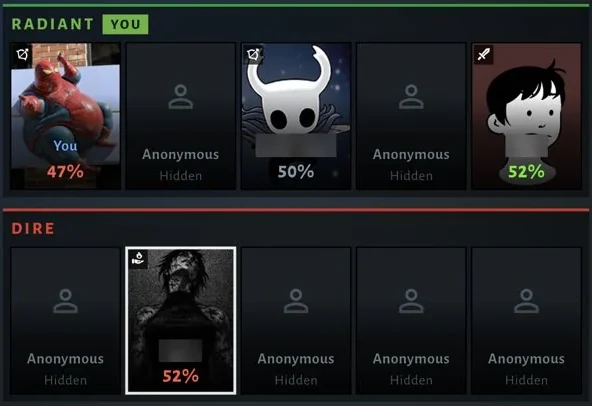
During hero selection it is the player’s overall win rate, across every game on their account. Once their hero is known, after strategy time, it becomes their win rate on that hero over their last 100 matches. A dash means they haven’t played that hero in those 100 games. Green is good for your team and red is bad for it, so a high win rate shows red on an enemy. Tap a player to see their overall win rate again.