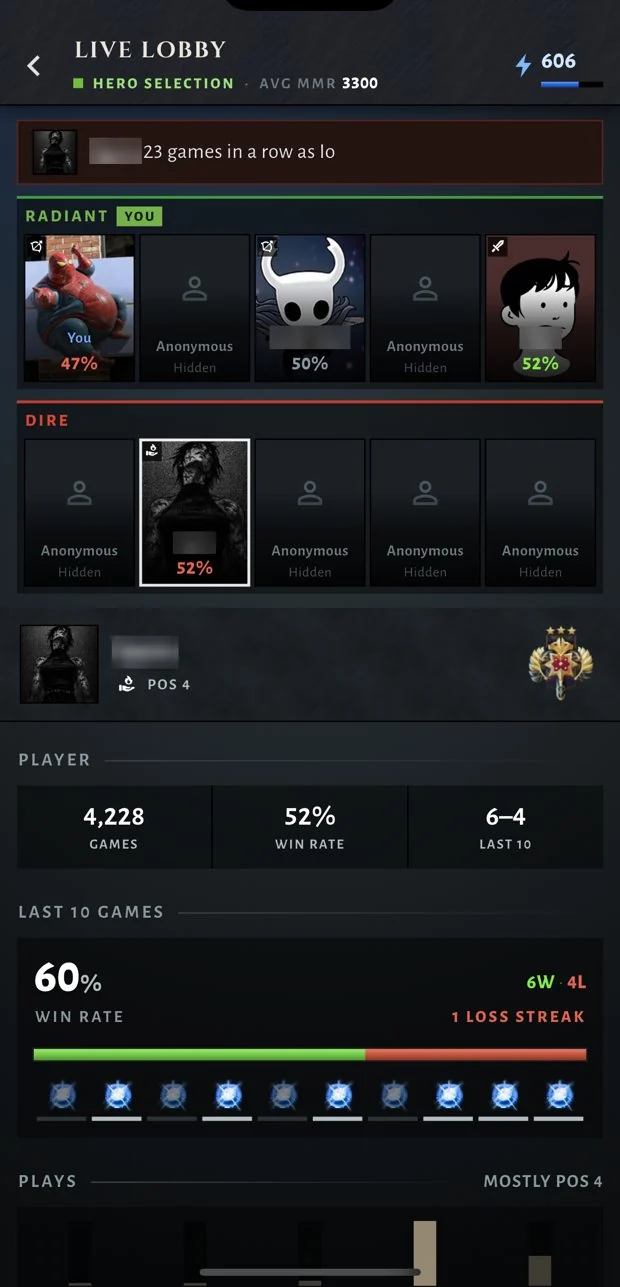
Searching for one role can leave you staring at the queue timer for a long time. You don’t have to. Dota Addiction can send a notification to your phone the moment Dota’s accept popup appears, with Dota’s own match-ready sound, so you can get up and still make it back in time.
Nothing runs on your computer, so this works the same on Windows, Mac and Linux. You never sign in to Steam through us, either.
Add the Steam bot as a friend
The notification needs our Steam bot in your friends list. The bot sees through Steam when your match is found, so without it the app has no way to know. If you already use the Live lobby, this part is done.
-
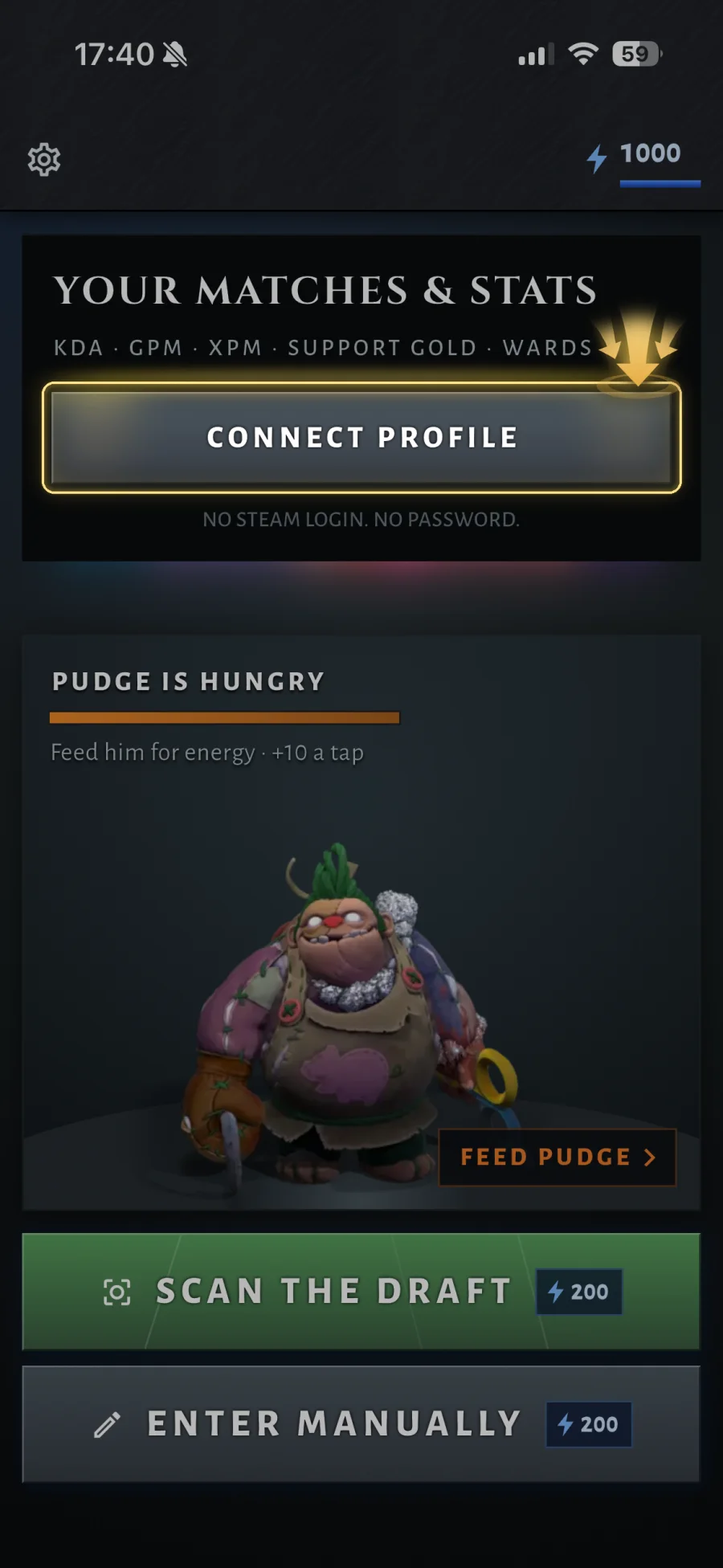
Connect your Dota profile. In Dota 2, click your avatar in the top-left: your Friend ID sits under your name.
-
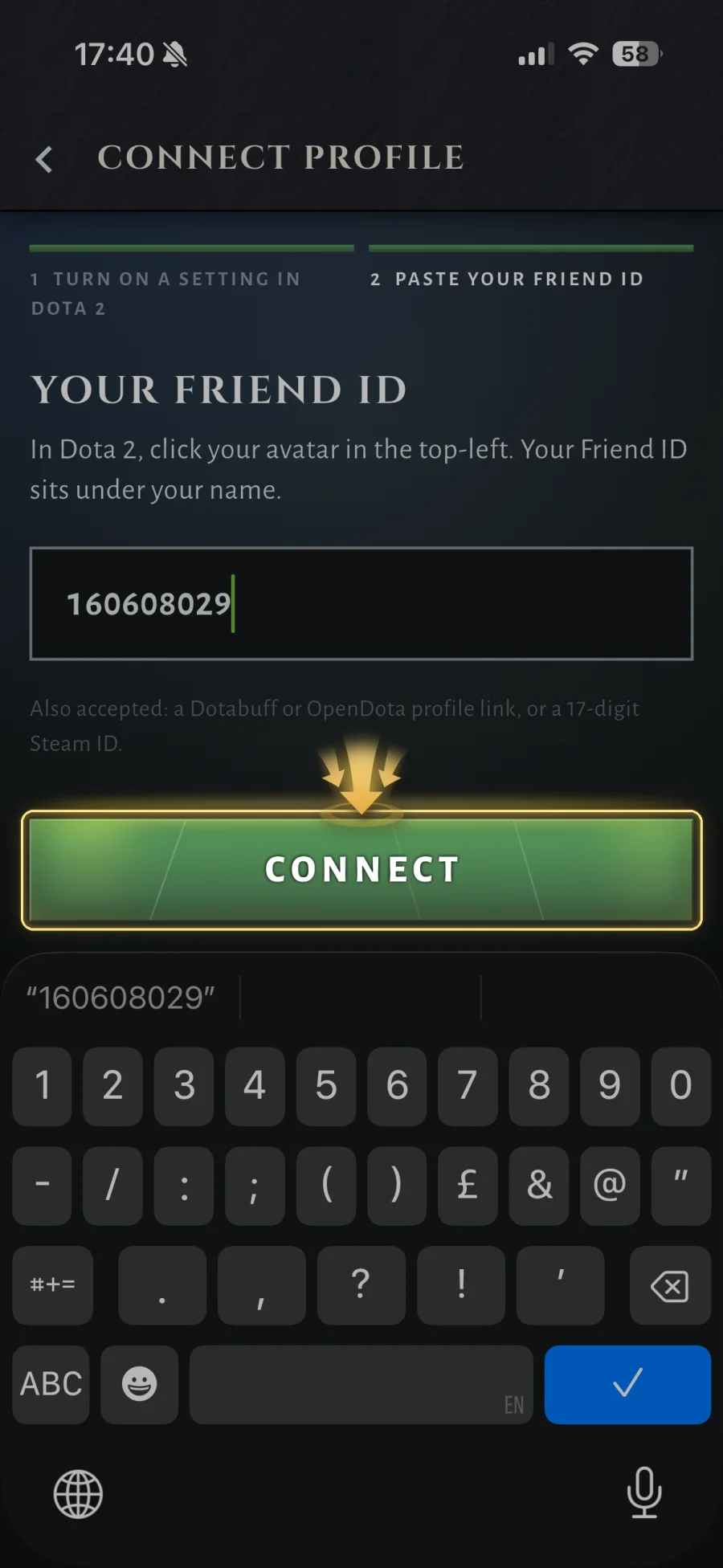
Enter your Friend ID. Type it into the app and tap Connect.
-
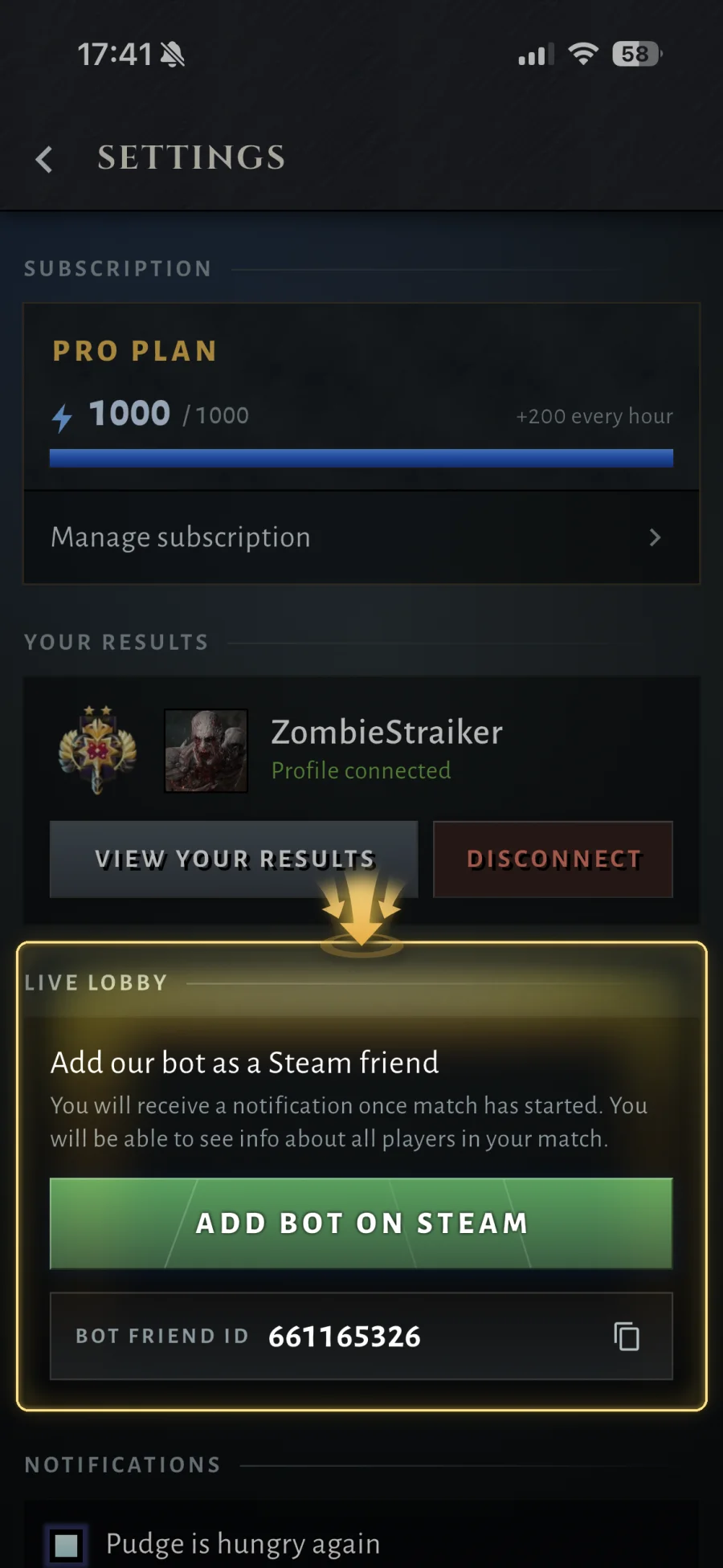
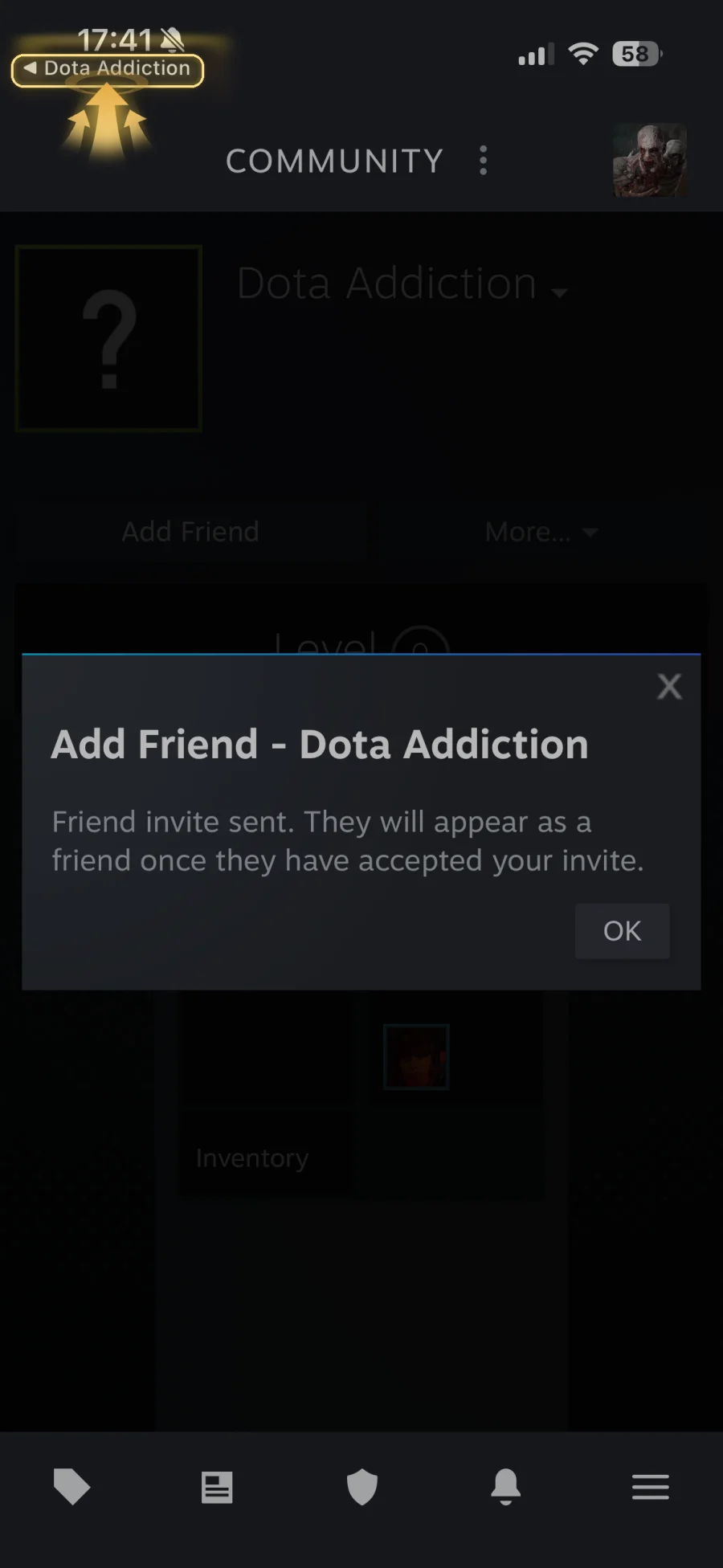
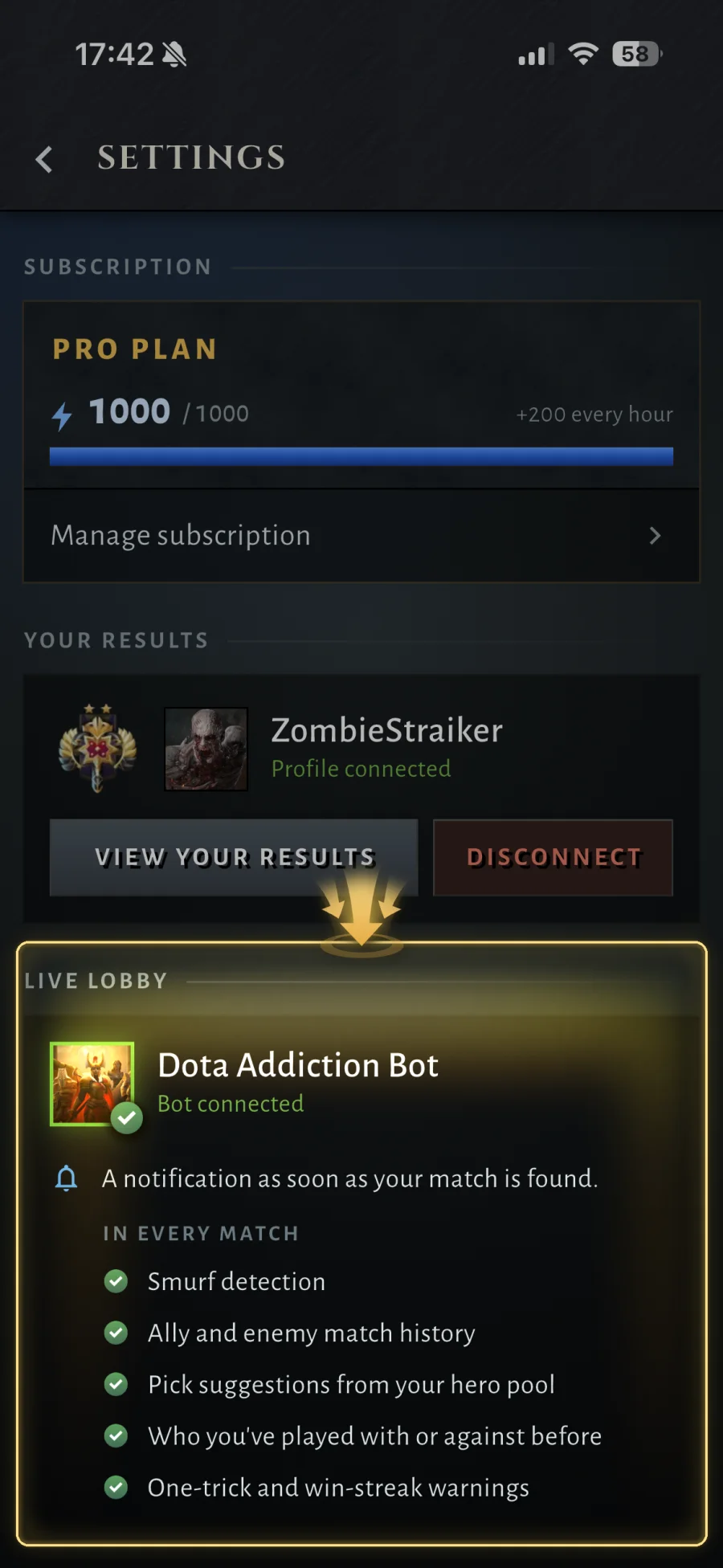
Add the bot on Steam. Open Settings. You will see your profile connected. Go to the “Live lobby” section and grab the bot’s Friend ID, or press “Add bot on Steam”. I have the Steam Mobile app installed, so it takes me straight to it.
-
Send the bot a friend request. Then come back to the app.
-
Go back to Settings. The bot should accept your friend request automatically.
Turn on the notification
-
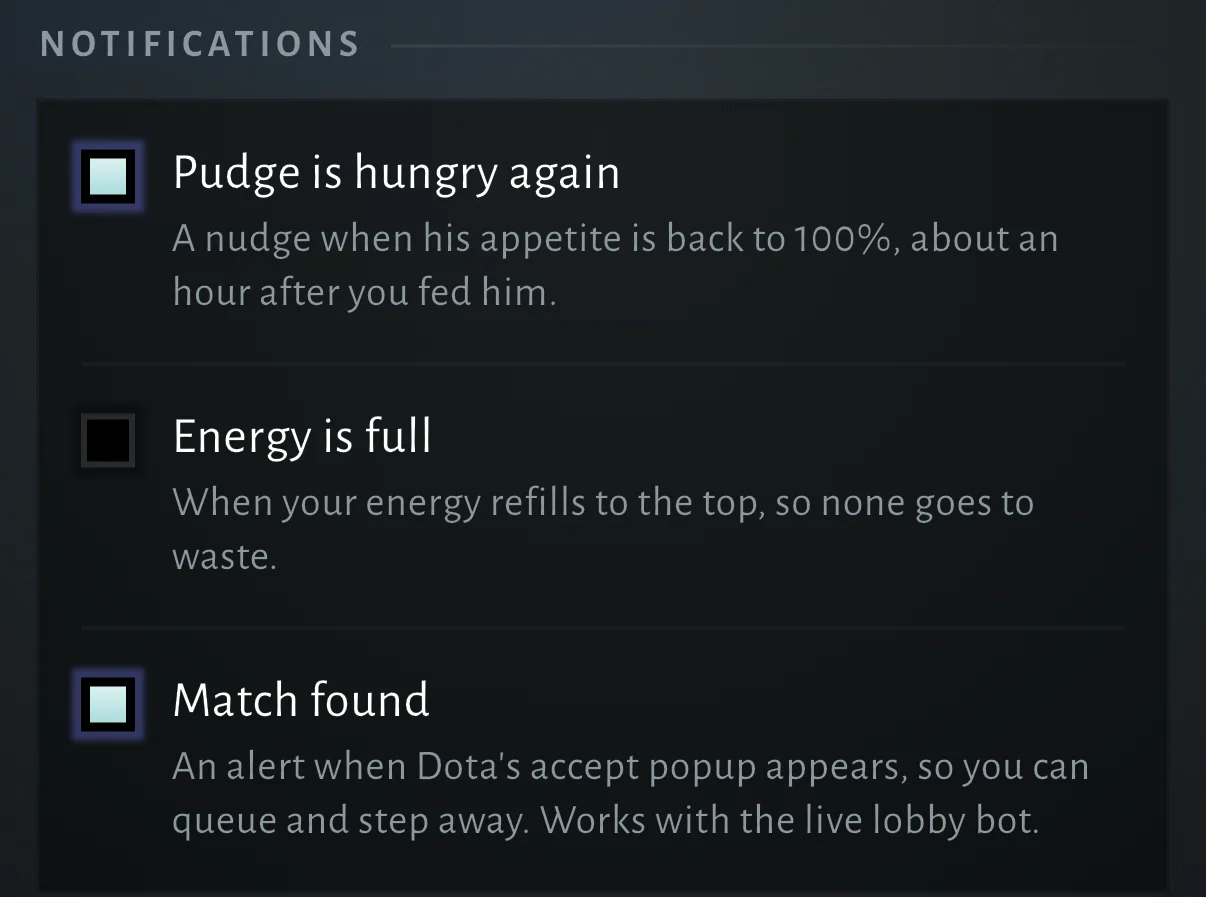
Turn on the “Match found” notification. Go to Settings › Notifications and tick “Match found”. It is off until you turn it on.
-
Allow notifications on your phone. If the app asks, tap Allow. It only asks once, so if you declined back then, turn notifications on for the app in your phone’s settings.
-
Test it at your desk. Queue once while you are still at your computer and check that your phone rings when the popup appears. Do this before you trust it with a real walk away from the desk. If the app is open when your match is found, you see this popup instead of a notification. Its button only closes the message: you still accept in Dota.
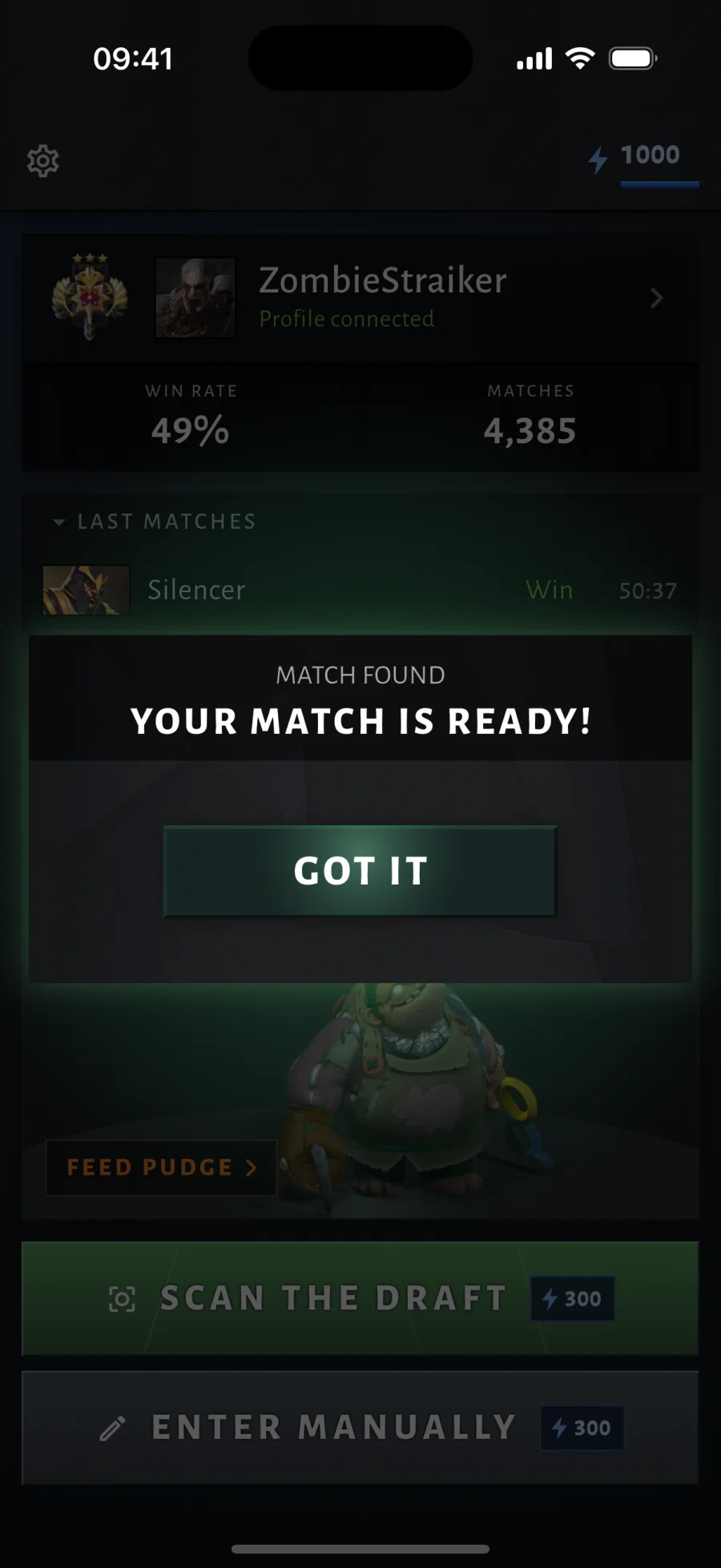
- It can’t accept the match for you. You still have to press Accept in Dota, on your computer.
Questions
Do I need to keep the app open?
No. The notification reaches your phone with the app closed. If the app is open when your match is found, you see the popup inside the app instead.
How do I turn it off?
Untick Match found in Settings › Notifications. To stop the Live lobby as well, remove the bot from your Steam friends.